
To add promo codes for a matrix, click on the Manage Matrix option in the menu on the left side of the page. Then either create a new matrix by clicking on the New button or Clone an existing matrix.
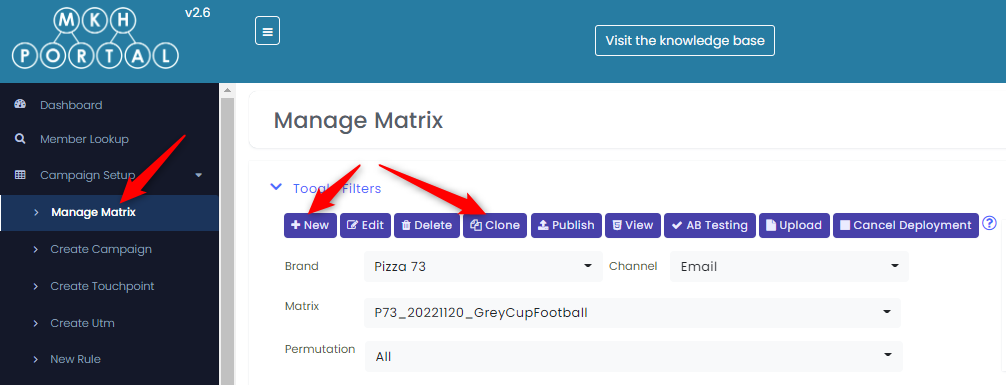
Either of these options will display the following screen where you need to select the option for Campaign Requires Promo Code File:
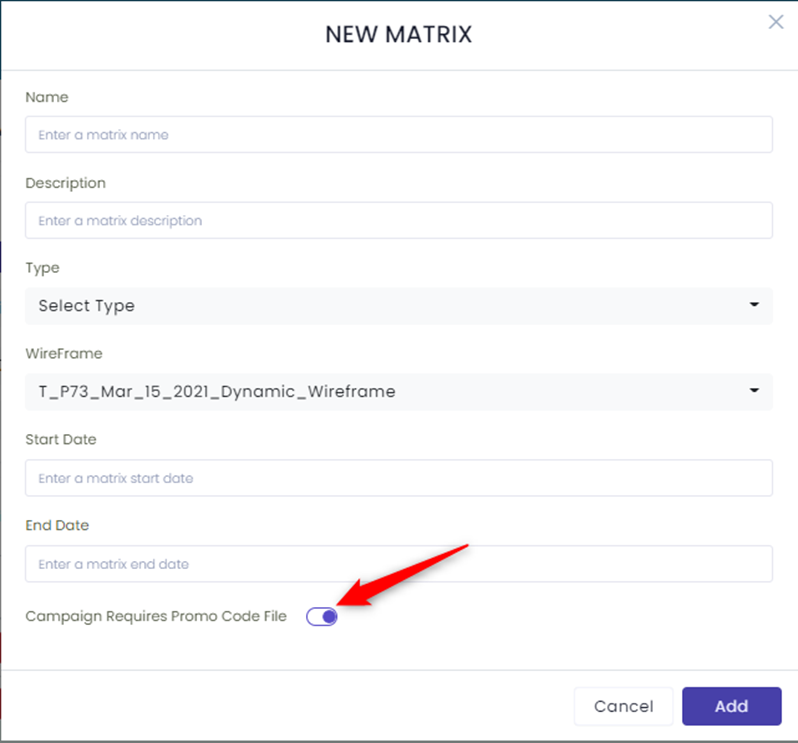
When you have completed the fields on the new matrix or clone matrix screen, click on the Add button to create the matrix. Now you can add promo codes by clicking on the Upload button:
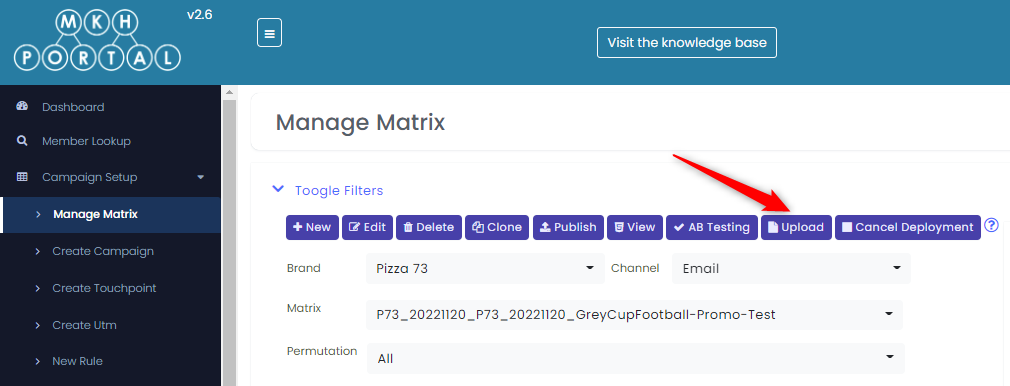
The requirements for a promo code file are:
- It must be in comma separated value (CSV) format.
- There should be three columns and they MUST have these column names and be in this order: COUPON, EXPIRATION_DATE, STATUS
- The STATUS must be either TEST or PRODUCTION
- There must be a minimum of 50 TEST coupons in the file
There are three main steps to upload a promo code file as follows:

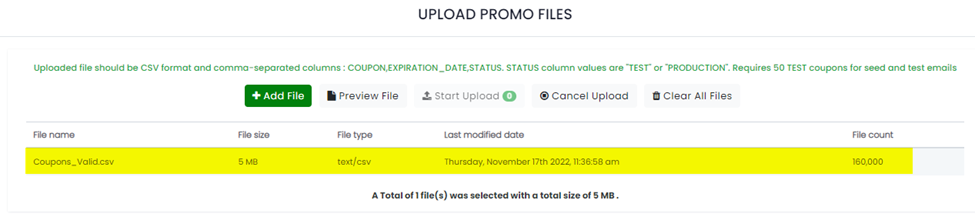
- Click on the Add File button and select the file you want to import
- Click on the Preview File option. If there are any errors with your file, you will receive an error message. Sample error messages are shown below:
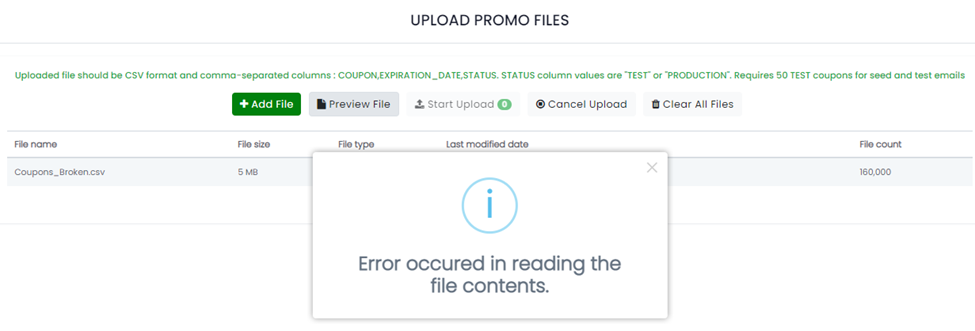
This generally indicates the file is not in the correct format (i.e. not CSV)
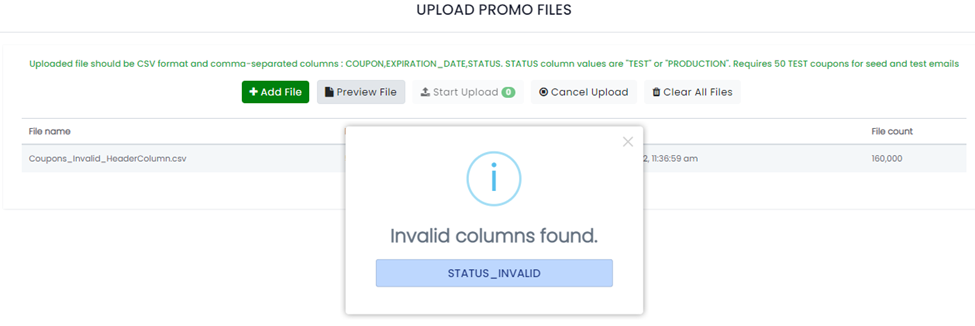
This means that the columns in the file do not have the correct names or there are the incorrect number of columns. There must be three columns labeled like this and in this order: COUPON, EXPIRATION_DATE, STATUS
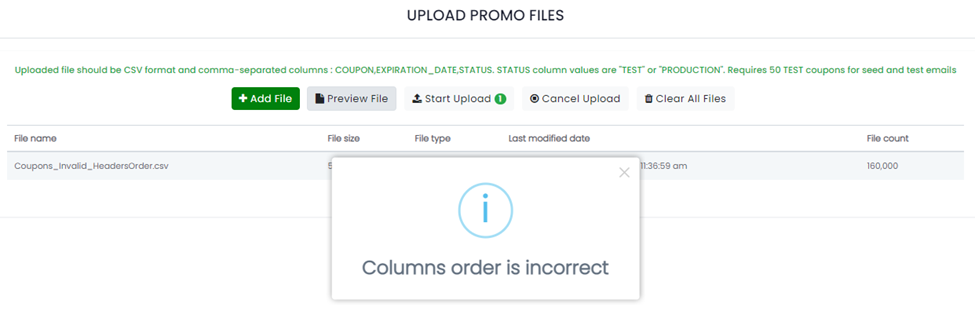
This means that the columns are not in the correct order. They must be in this order: COUPON, EXPIRATION_DATE, STATUS
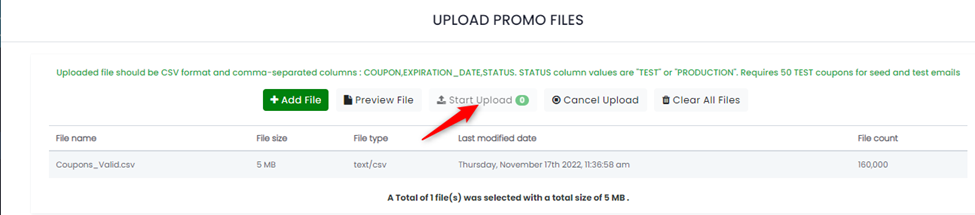
If the file format is correct, will see the file added to the list:
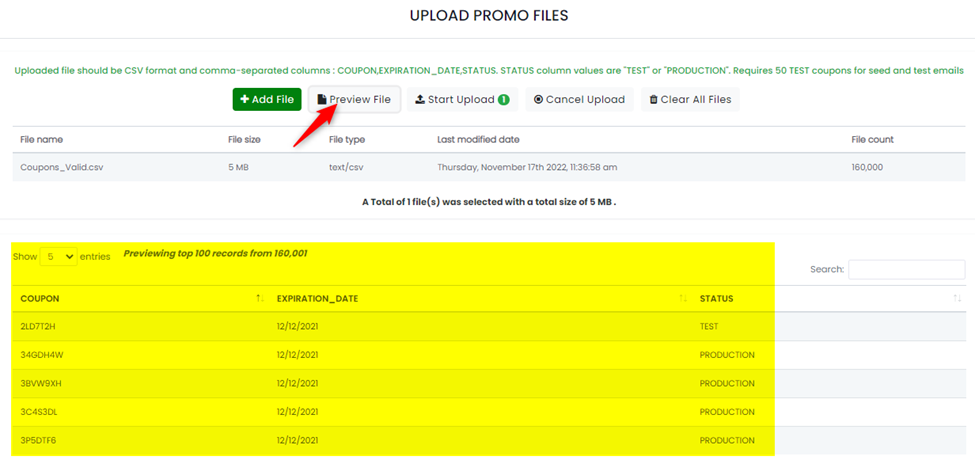
Next, you click the Preview File option and you will see a list of the promo codes that were imported:
Finally, click the Start Upload option to import the file:
You will then see this confirmation that the file has been imported:
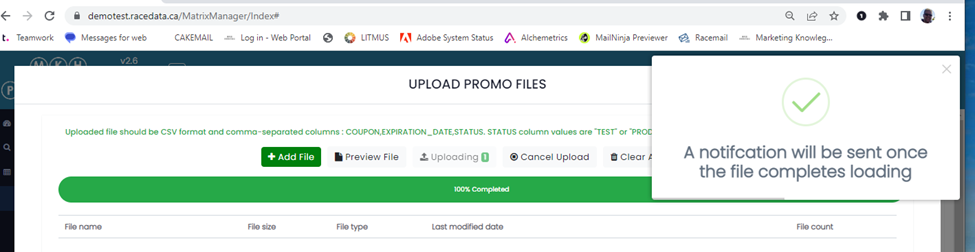
You can continue to work in the portal while the file is uploading. You will receive an email confirmation once the file upload is complete.