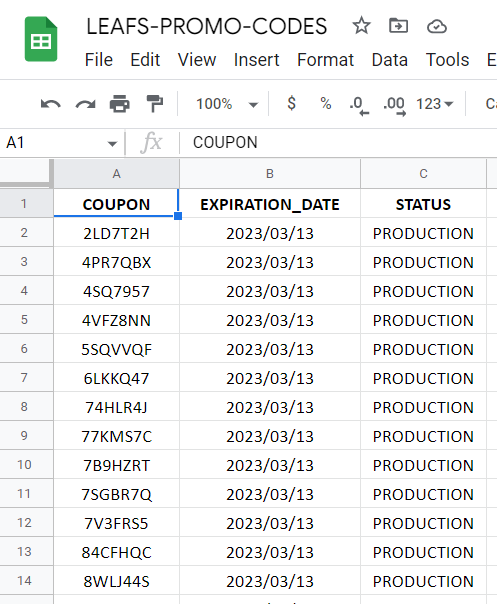
Load the list of promo codes into Google Sheets:
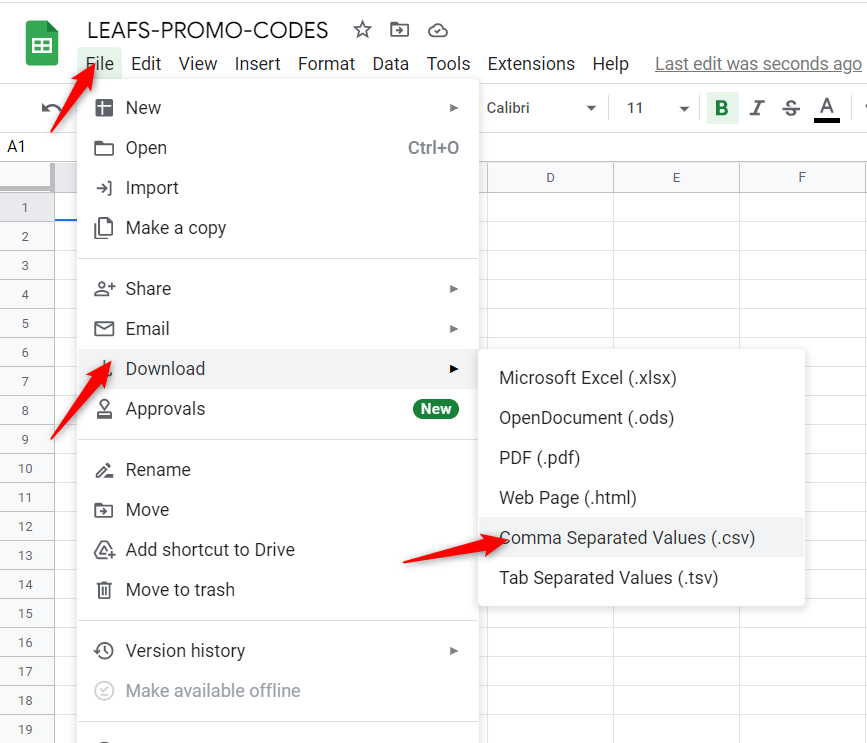
Export the list as comma separated value (CSV):
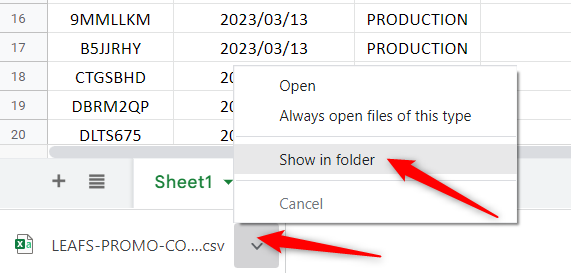
Open the file location where the file was exported:
If necessary, rename the file as follows:
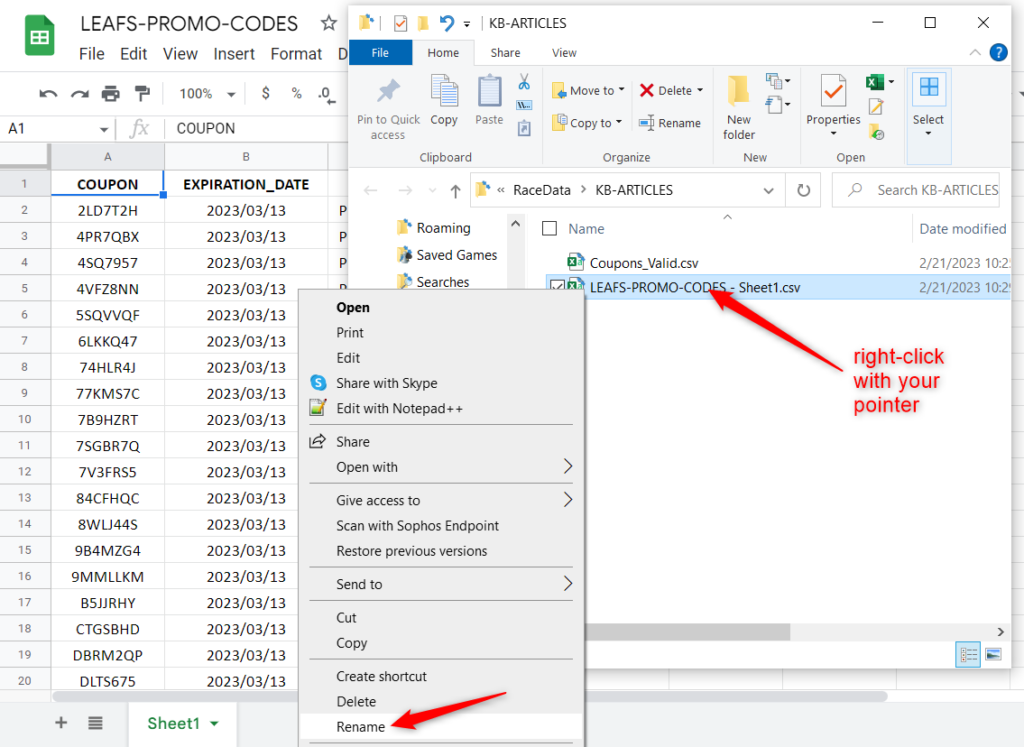
Check that all records were exported properly by editing the file with Notepad++:
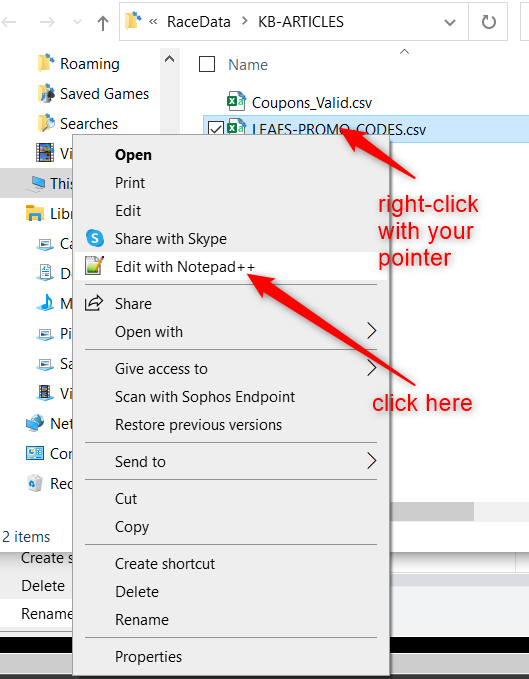
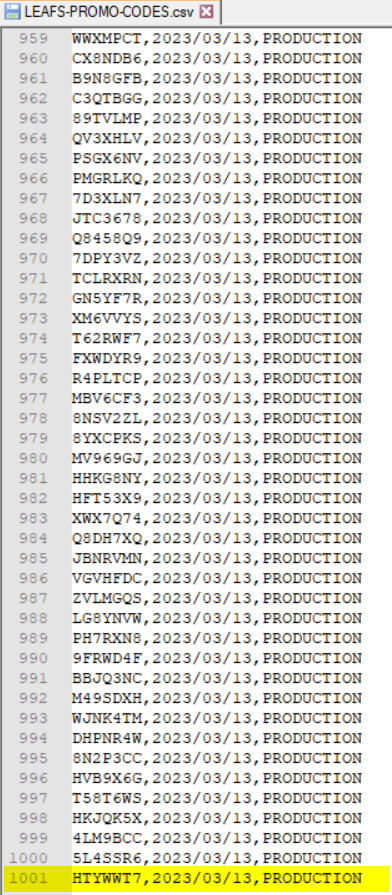
Confirm that there are the number of lines you expect in the file. In the example file there were 1000 codes + the header line, so there are 1,001 lines in the file:
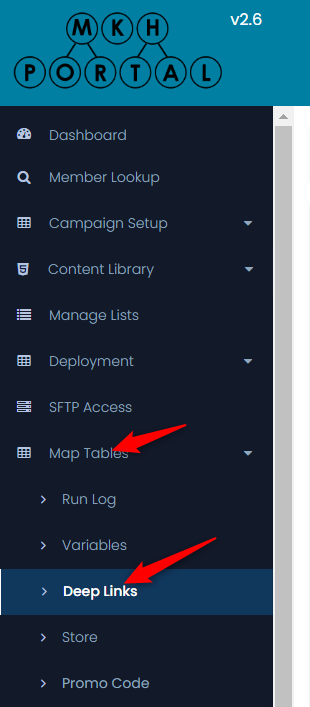
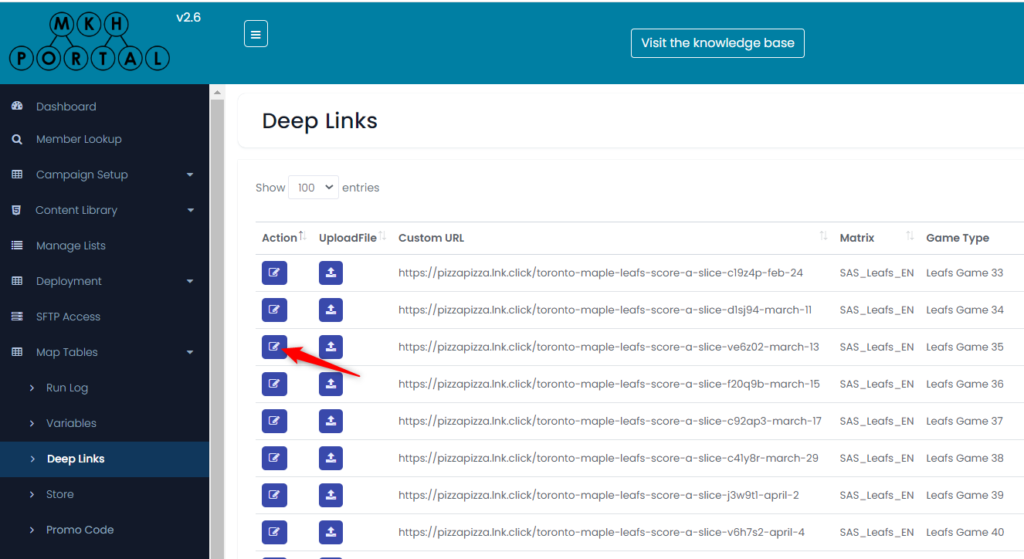
Go to the Deep Links menu option:
Update the Deep Link to point to the correct matrix by selecting the Edit Icon:
Next, select the matrix:
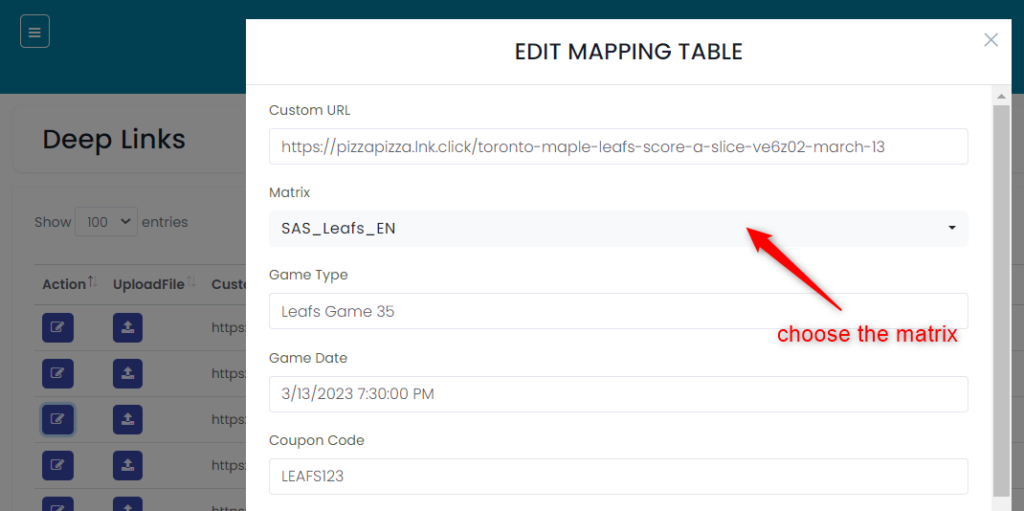
SAVE those changes, then upload the codes by clicking on the UploadFile icon:
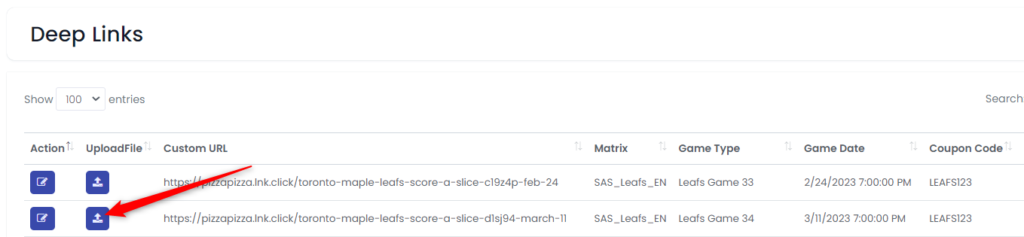
Now upload the file you exported earlier:

- Click on the Add File button and select the file you want to import
- Click on the Preview File option. If there are any errors with your file, you will receive an error message. Sample error messages are shown below:
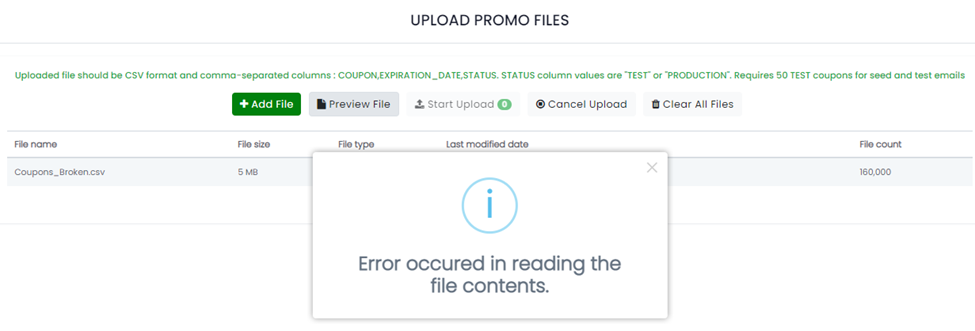
This generally indicates the file is not in the correct format (i.e. not CSV)
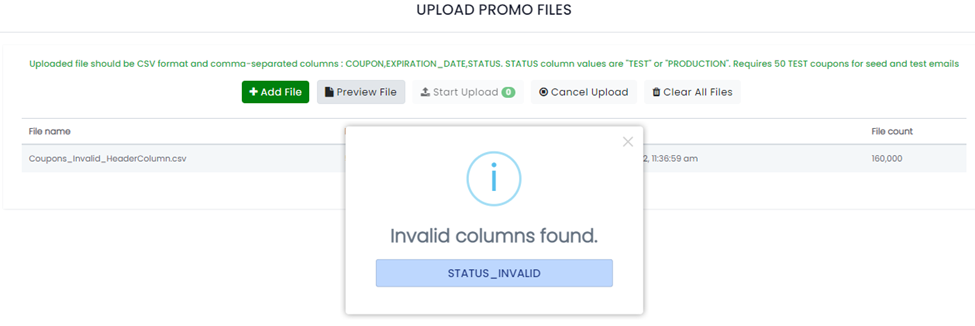
This means that the columns in the file do not have the correct names. They must be: COUPON, EXPIRATION_DATE, STATUS
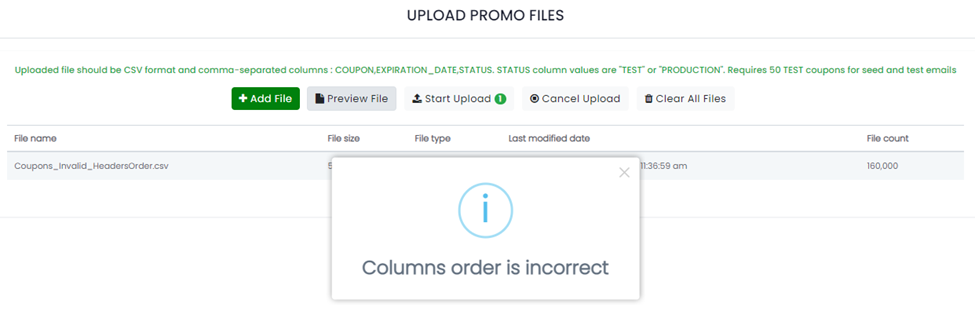
This means that the columns are not in the correct order. They must be in this order: COUPON, EXPIRATION_DATE, STATUS
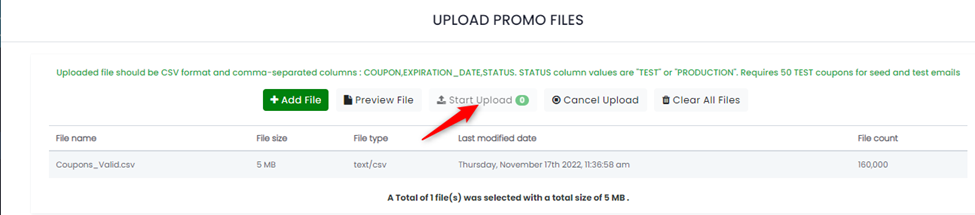
If the file format is correct, will see the file added to the list (the filename below is a sample):
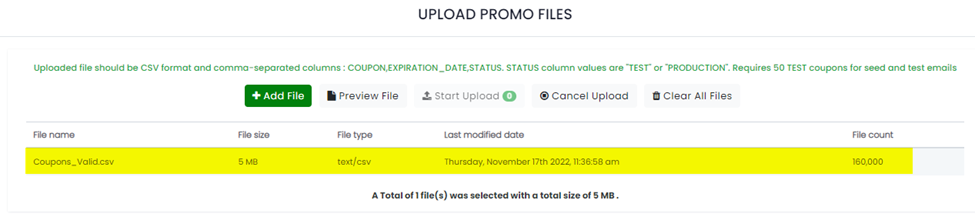
Next, you click the Preview File option and you will see a list of the promo codes that were imported (the records shown below are from a valid sample file and are not the same as in the file we created in earlier steps):
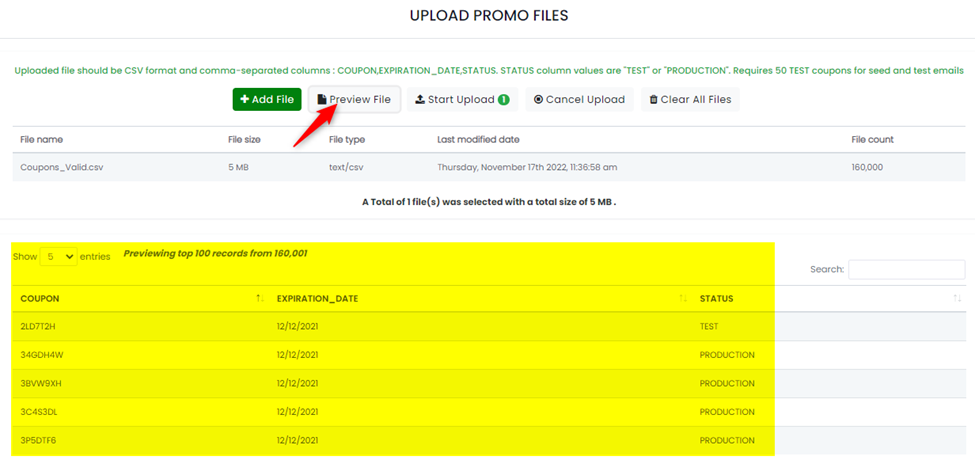
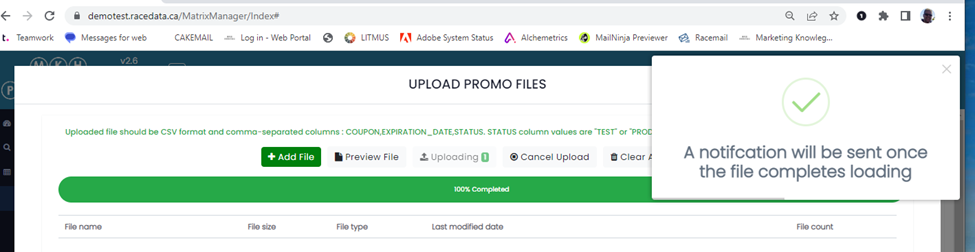
Finally, click the Start Upload option to import the file:
You will then see this confirmation that the file has been imported: