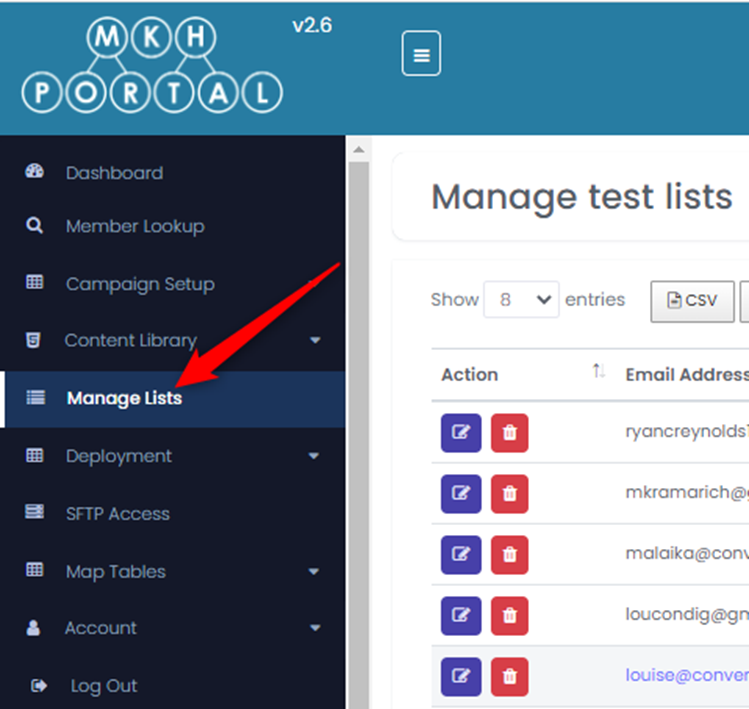
To add users to the test lists, the first step is to click on Manage Lists from the left menu:
To add new test list, click on the Add button at the top right of the page:

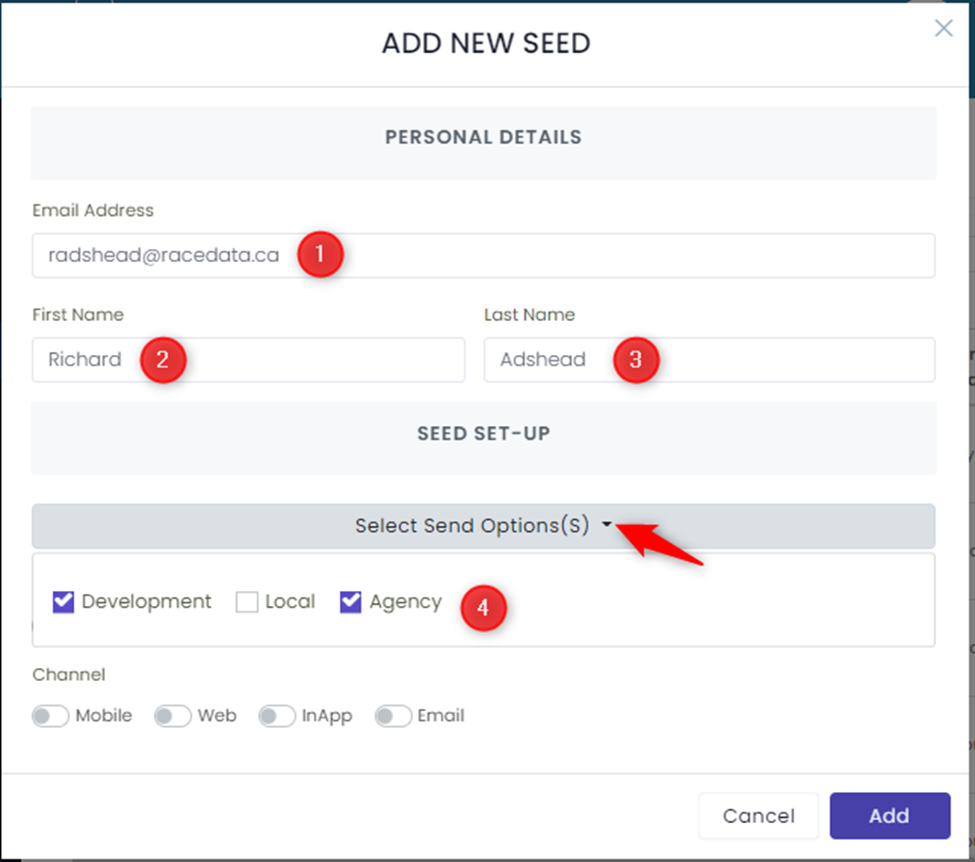
Populate the fields on this screen:
- Add an email address
- Add a first name
- Add a last name
- Click on the down arrow to Select Send Option(s) and then select the group(s) to which this email address should apply
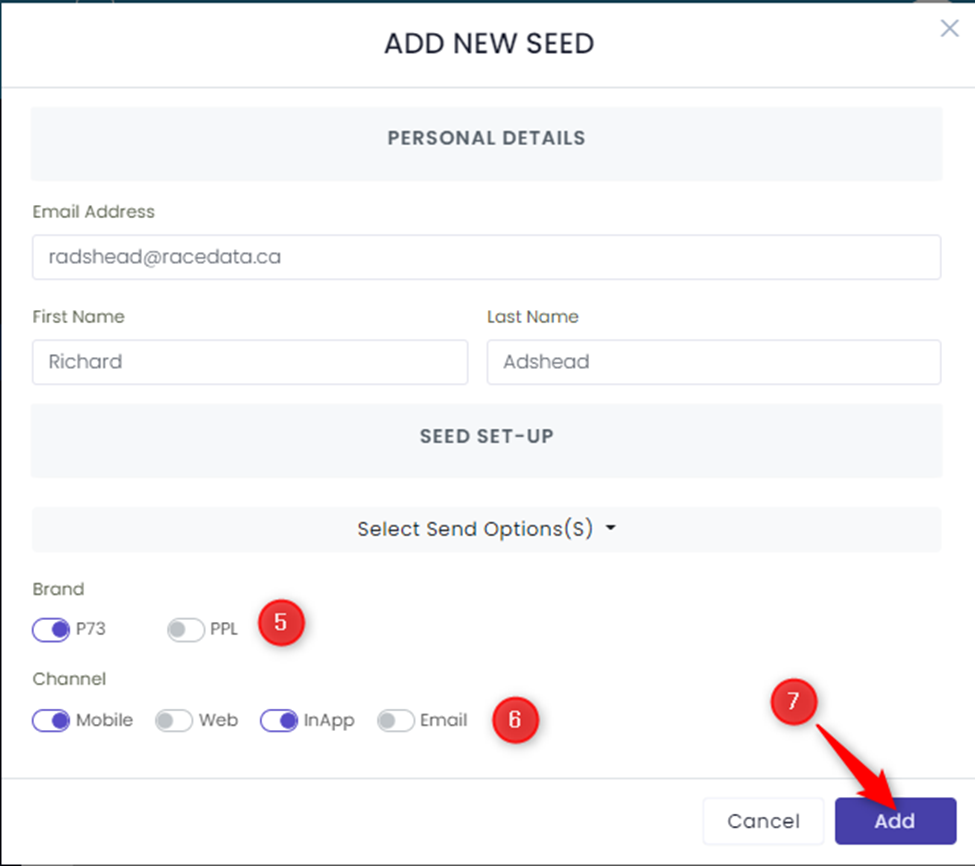
5. Deselect Select Send Options(s) and select the brand(s) to which this email address should apply
6. Select the channel(s) to which this email address should apply
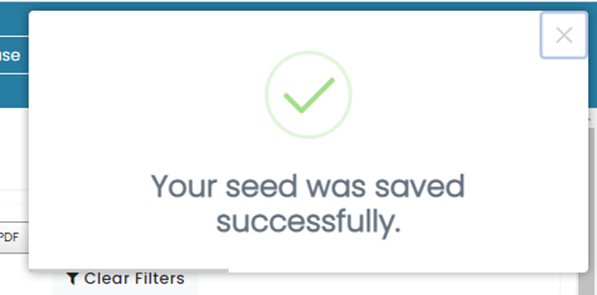
7. Click on the Add button and then you will see the following confirmation:
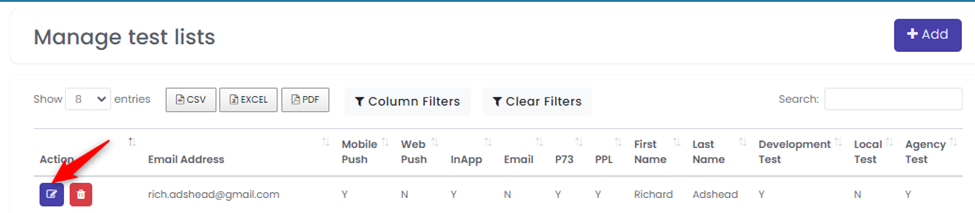
You will see the newly created email in your test list. If you want to make any changes, click on the Edit icon as show by the arrow below: