To create a push message that will take a customer directly to a specific category and section of the App, first select the Manage Matrix menu choice from the Campaign Setup menu:
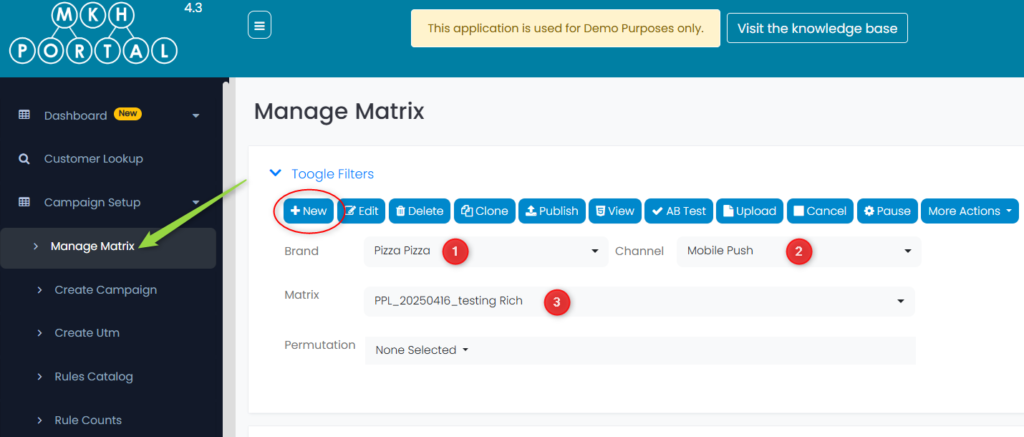
- Select the Brand
- Select Mobile Push as the Channel
- Select a pre-existing Matrix, or click the +New button to create a new matrix
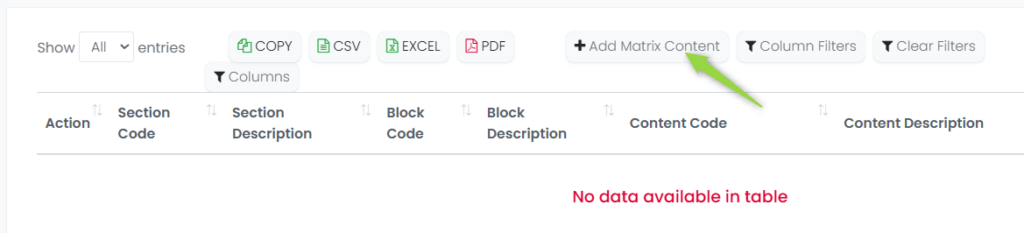
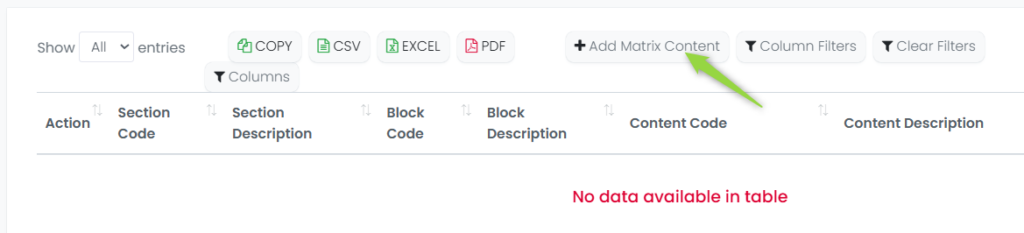
Next, click on the +Add Matrix Content button:
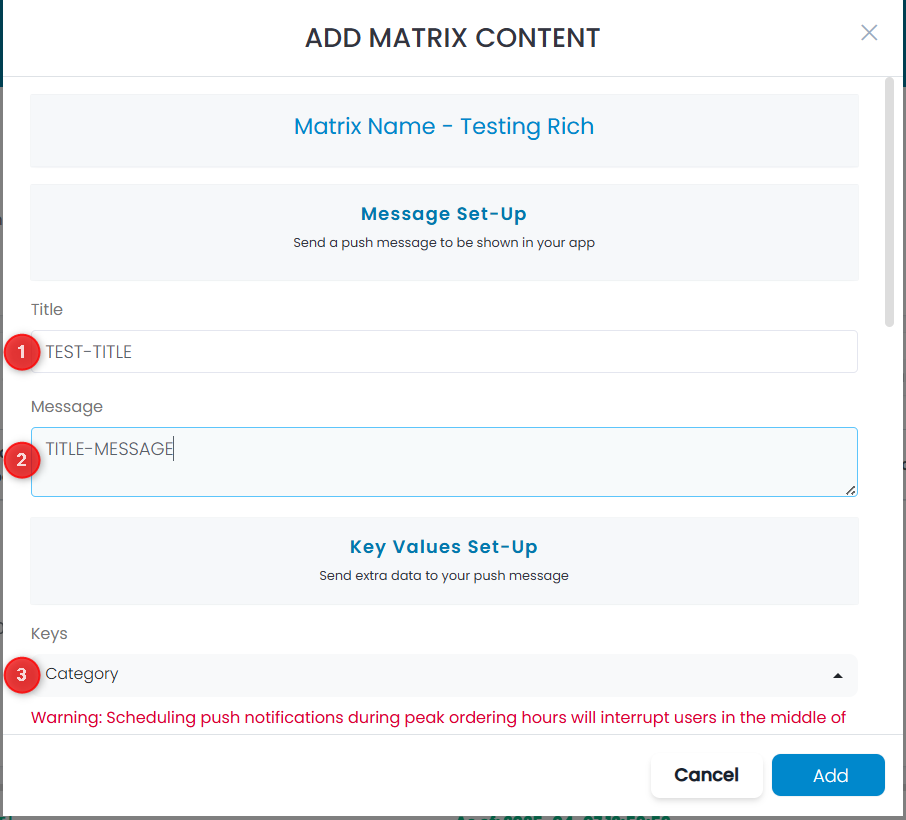
- Enter a Title
- Enter a Message to be sent in the push
- For Keys, select Category
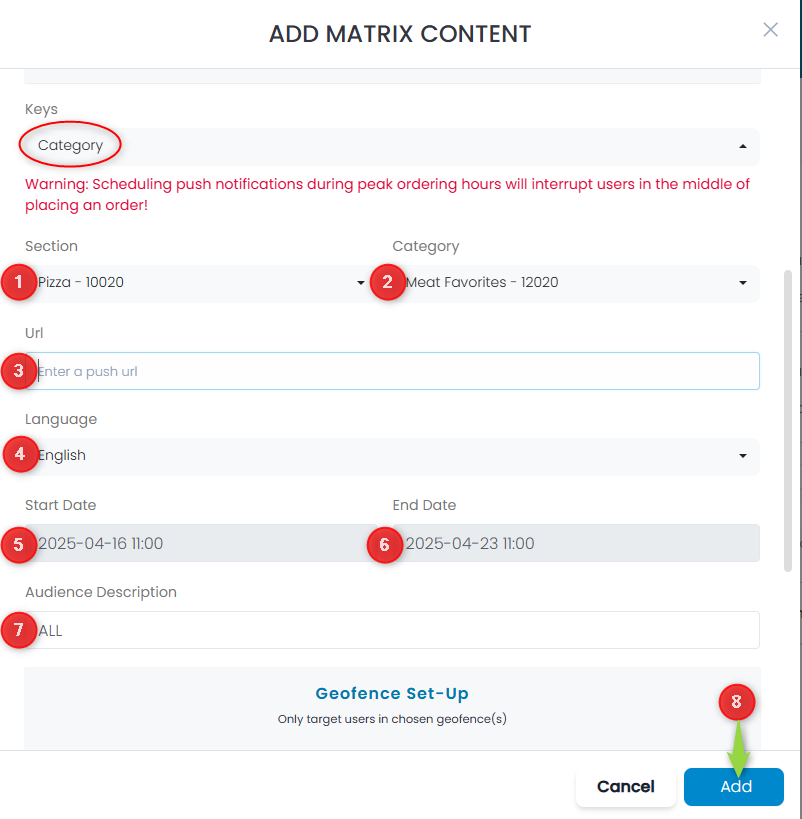
- Select a Section (the main level in the App)
- Select a Category (the secondary level in the App)
- Enter the Url for the Push
- Select a Language (required field)
- Select a Start Date (required field)
- Select an End Date (required field)
- Enter an Audience Description (required field)
- Click the Add button to save
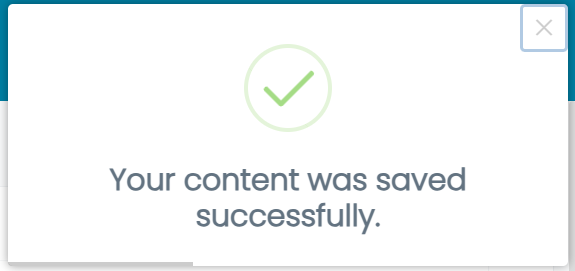
You’ll see your new entries listed in the table as shown:
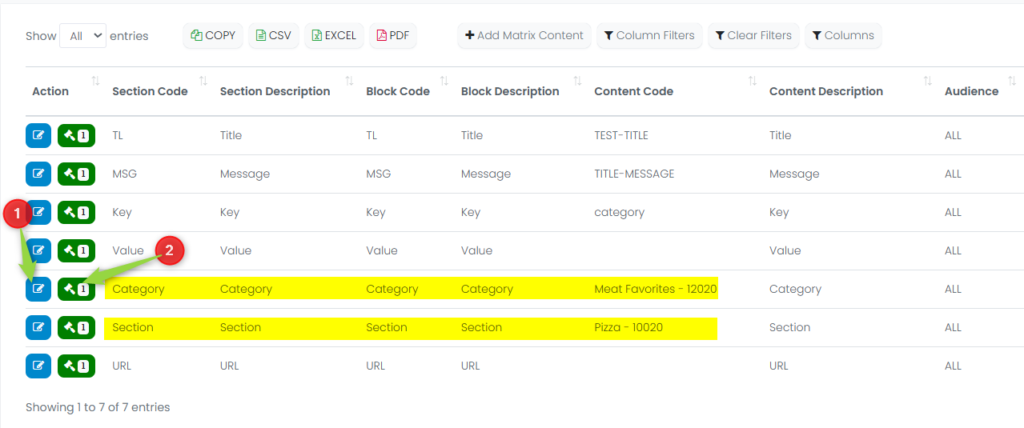
- Click this button to Edit the content
- Click this button to set Rules for the content
Setting Rules
Select from the list of pre-defined rules to change when the category or section will be displayed:
Select the specific rule you require:
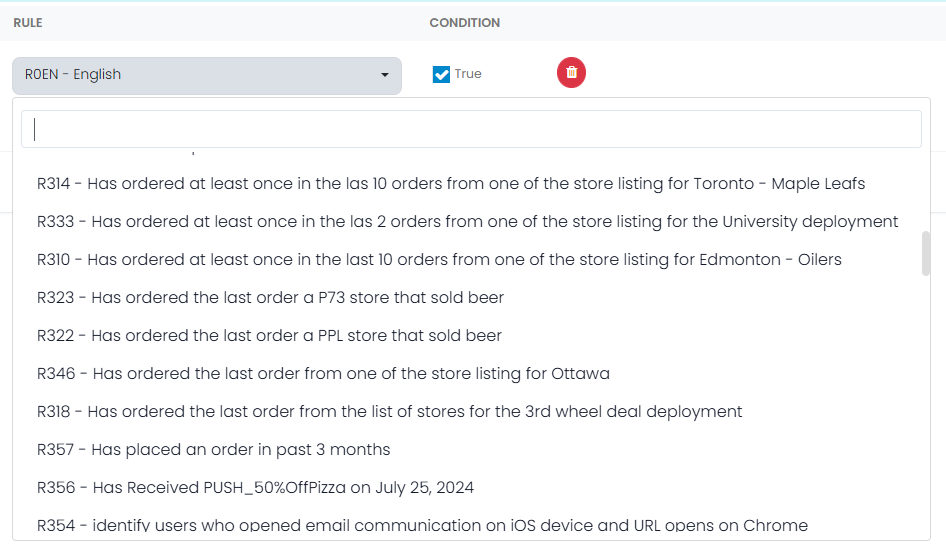
One you have selected a rule, you have the following options:
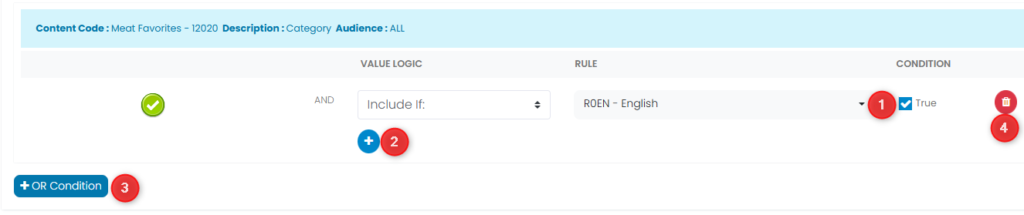
- Toggle this setting to include this category/section if the rule is TRUE or FALSE
- Add additional AND conditions to control display of this category/section
- Add an OR condition to further control when this category/section will be displayed
- Click to delete the condition
Finally, close the rule editor with one of the two following options:
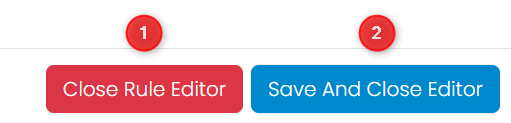
- Close the Rule Editor without saving
- Close the Rule Editor and SAVE changes
Publishing the Matrix
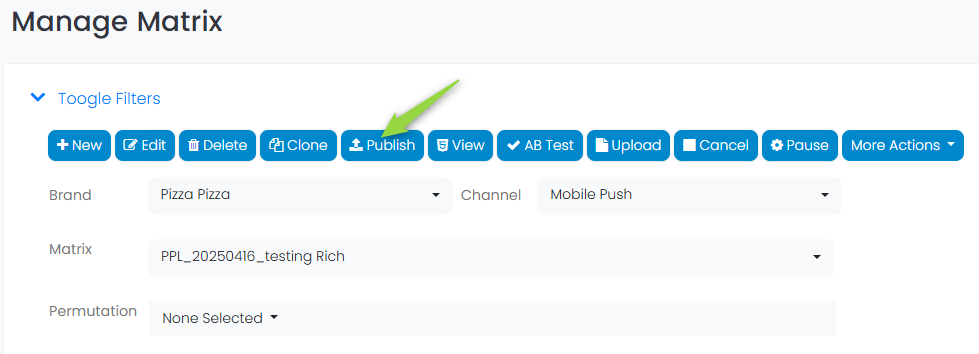
To test the matrix or put it into production, you must first publish it: